SceneView is the panel you author in. You orbit around the scene, click to select an entity, and drag a transform gizmo to move, rotate, or scale it — every change is written straight into the live ECS world and is fully undoable. It has two modes, 3D and UI, toggled from a dropdown in its toolbar; your choice persists across sessions.
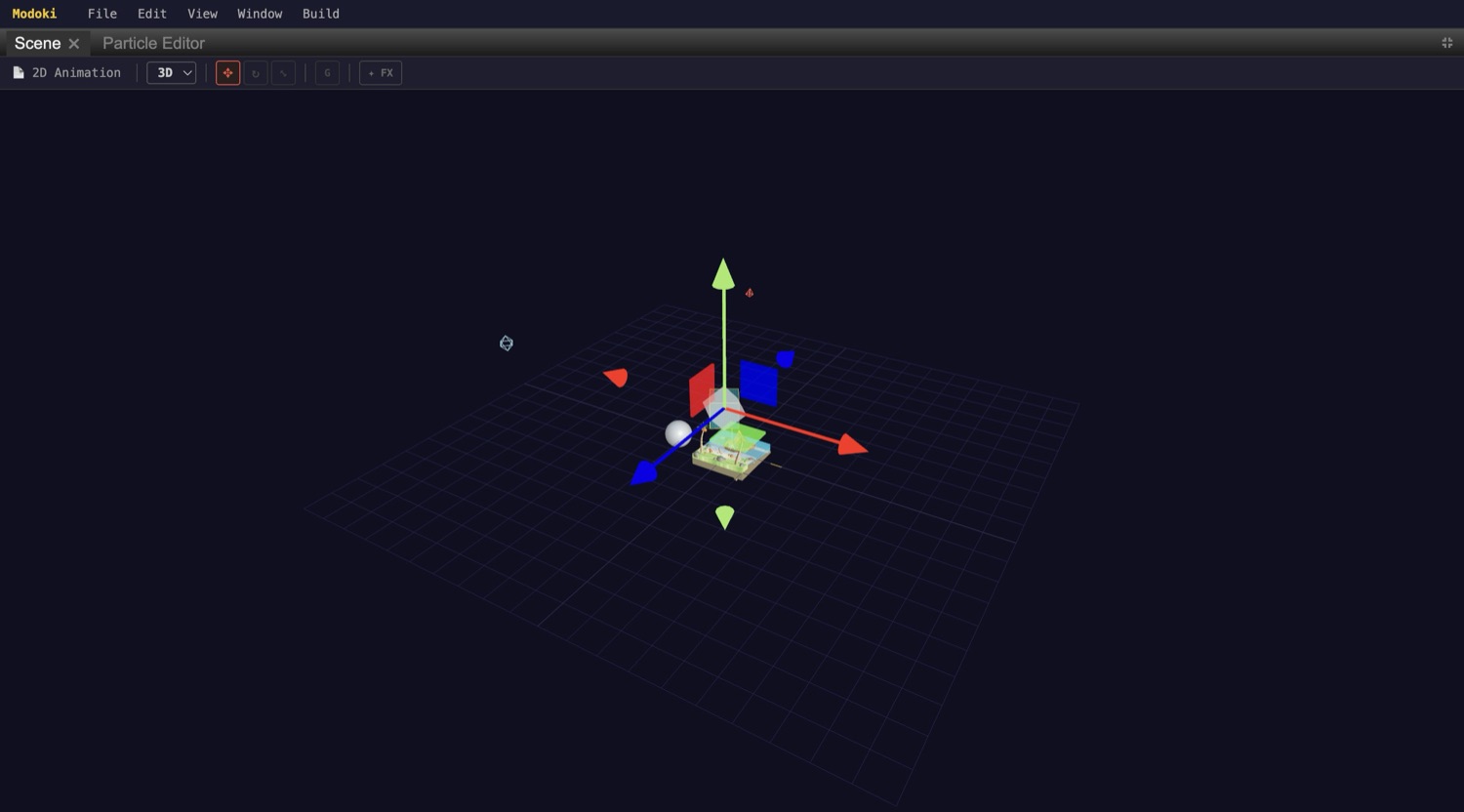
Where SceneView lives
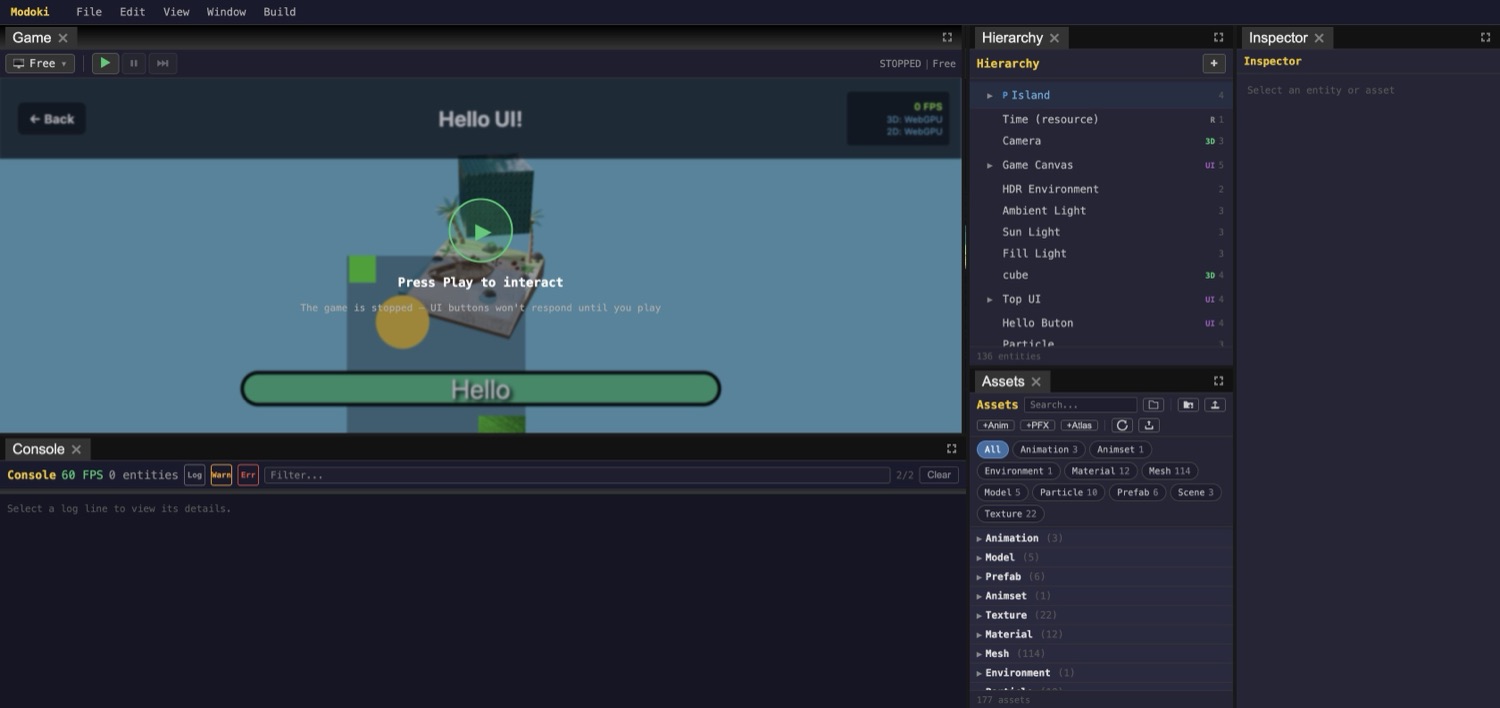
The editor shell is a set of dockable, tabbed panels (built on flexlayout) — Game, Scene, Console, Hierarchy, Assets, and Inspector. You can drag any panel to a new position, split the layout, or maximize a single panel. SceneView is the Scene tab.
3D mode
3D mode is a Three.js orbit camera. Drag to orbit around the scene and use the scroll wheel to zoom. Click an object to select it — the click is resolved by a raycast. The selected entity gets a transform gizmo (Three.js TransformControls) that you drag to edit it.
The toolbar
From left to right, the SceneView toolbar shows:
- The current scene / file name.
- The 3D / UI mode dropdown.
- Translate gizmo — shortcut W, icon
✥. - Rotate gizmo — shortcut E, icon
↻. - Scale gizmo — shortcut R, icon
⤡. - A space toggle labelled
Gthat switches the gizmo between world and local space — shortcut X. - ✦ FX, which previews particle effects in the scene — shortcut P.
Editing with a gizmo
Dragging a gizmo axis transforms the selected entity. The change is written to the live ECS world and can be undone. The link to the Inspector is two-way: moving an entity in the viewport updates the Inspector's Transform numbers in real time, and editing those numbers moves the entity in the viewport.
- Select an entity Click an object in the viewport. A gizmo appears on it.
- Pick a tool Press W to translate, E to rotate, or R to scale (or click the matching toolbar button).
- Drag an axis Grab one of the colored axis handles and drag to transform the entity. Watch the Inspector's Transform fields update as you go.
- Toggle space if needed Press X (the
Gbutton) to switch the gizmo between world and local space. - Undo if wrong Because each drag writes an undoable change, you can step it back with the editor's undo.
Press P (or click ✦ FX) to preview particle effects directly in SceneView while you author them.
UI mode
Switch the dropdown to UI and SceneView becomes a device-sized DOM preview of your ECS-driven UI. Click a UI element to select it, then use the custom move and resize gizmos to lay it out. UI elements are ordinary entities carrying UIElement and UIAnchor traits.
SceneView vs. GameView
The separate Game tab is a live running preview that composites all three render layers — 3D, 2D, and UI — at a device size you choose. While stopped it shows "Press Play to interact"; press Play to run the actual game.
SceneView is for authoring — selecting and arranging entities. GameView is for playing — exercising the real, running game. Use SceneView to build the scene, then switch to the Game tab to test it.